Getting Started with Google Colab
Before you write a single line of Python, you need somewhere to run it. Google Colab is that place.
It’s a free, browser-based environment that lets you write and execute Python without installing anything. No setup, no configuration — just open a notebook and start coding. It also comes with NumPy, Pandas, and most data science libraries already installed, which means everything in this module works out of the box.
Opening a notebook
Go to colab.research.google.com. Sign in with a Google account and click New notebook. That’s it — you’re in.
How a notebook works
A Colab notebook is made up of cells. Each cell is an independent block you can write code in and run on its own.
To run a cell, click the play button on its left, or press Shift + Enter.
print("Hello, world!")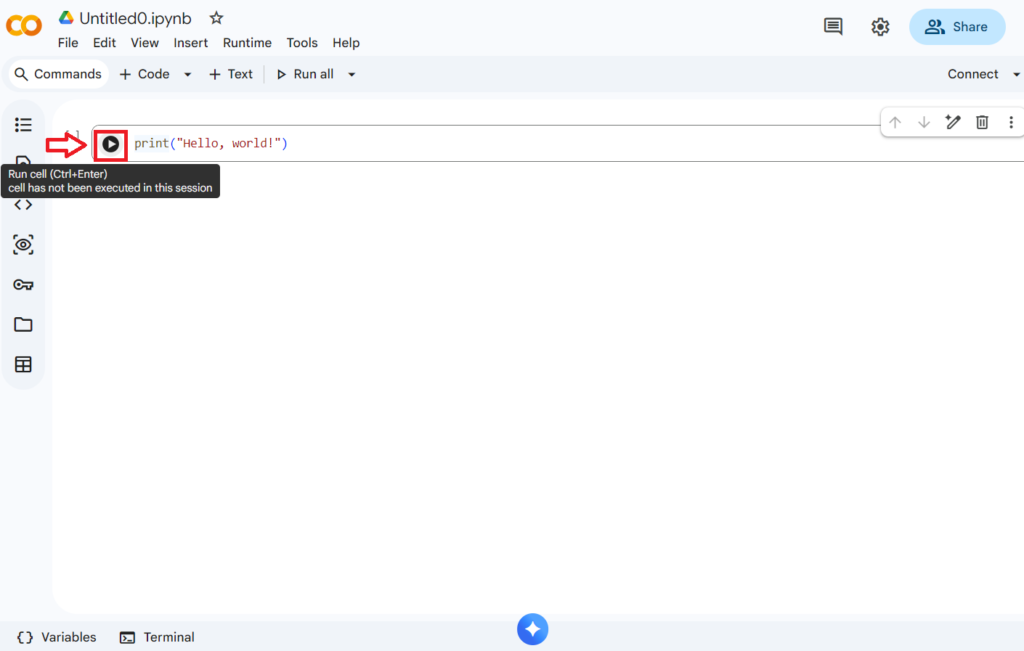
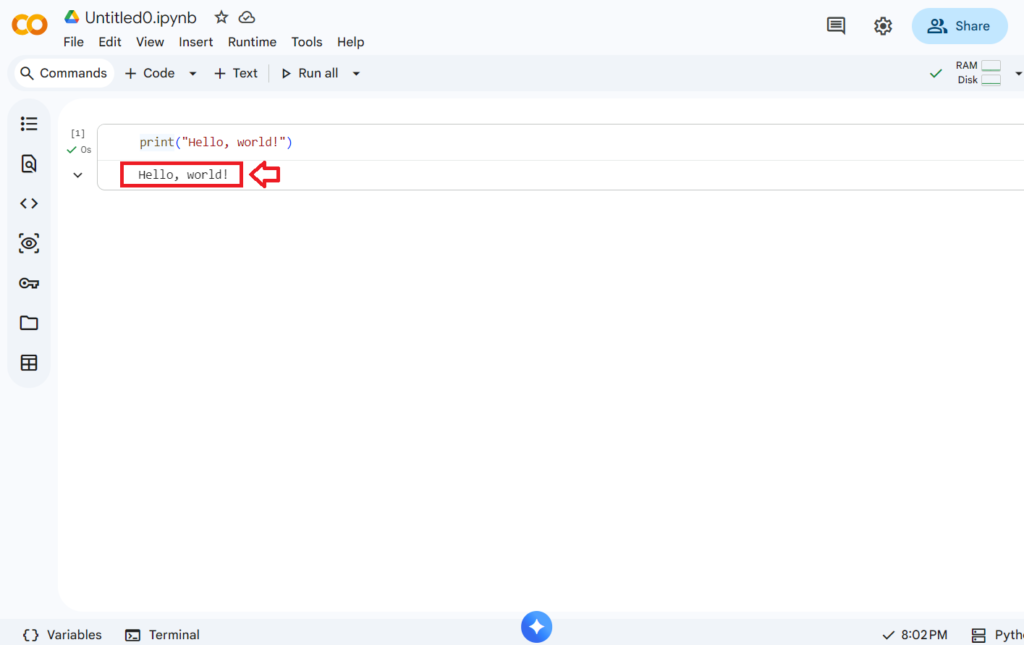
The output appears directly below the cell. You don’t need a main() function, no compiling, no terminal — just write and run.
Cells run in order — mostly
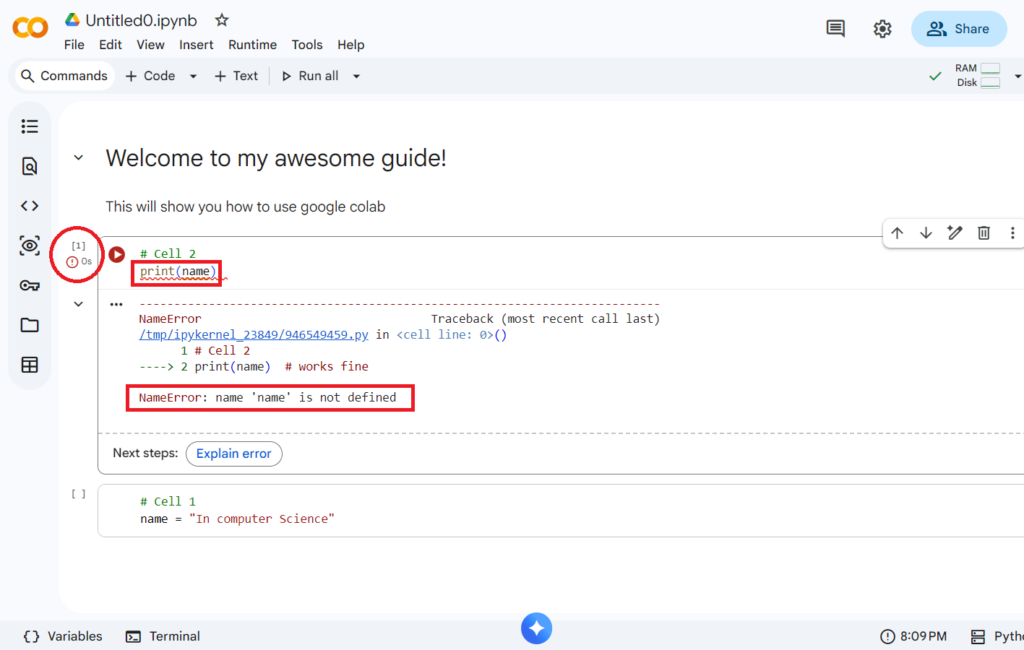
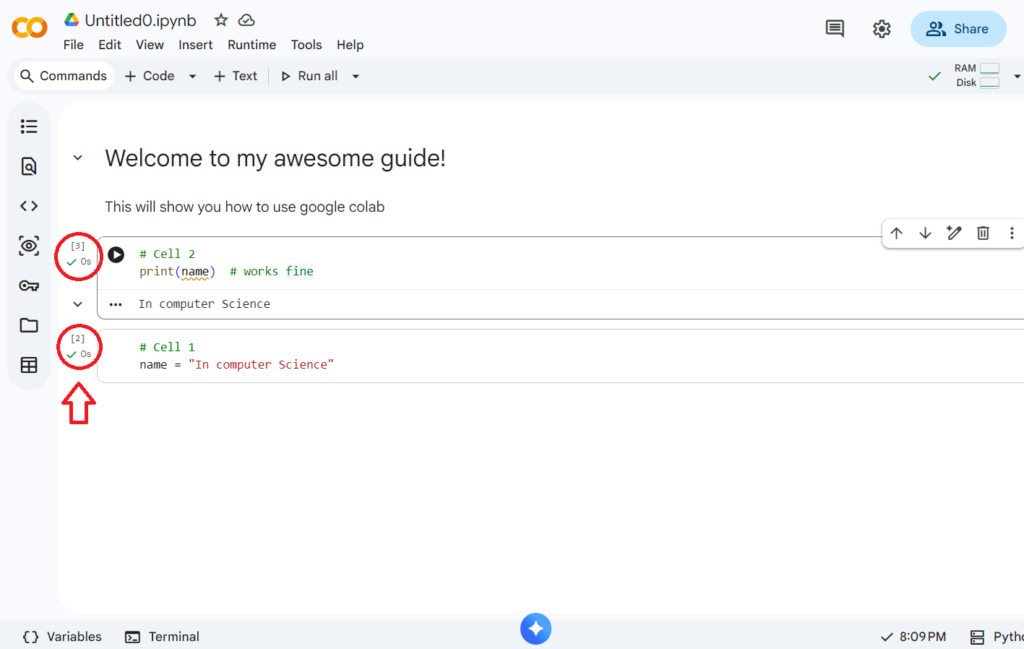
Colab remembers everything you’ve run in the current session. If you define a variable in one cell, it’s available in every cell below it.
# Cell 1
name = "Bloom"

# Cell 2
print(name)  # works fine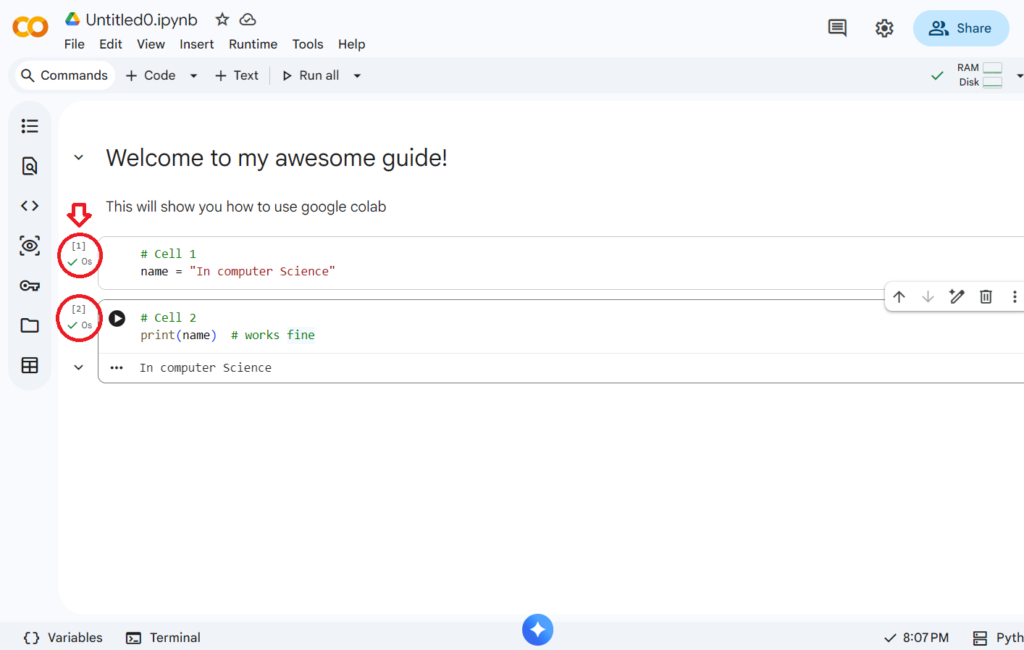
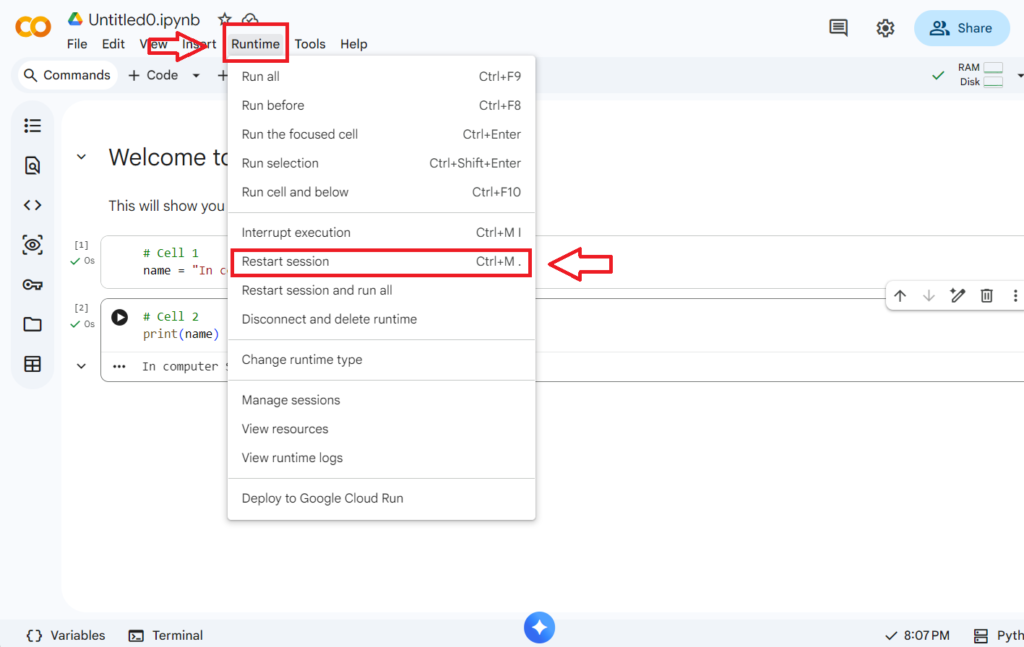
One thing to watch: if you run cells out of order, you can end up in a confusing state. When in doubt, go to Runtime → Restart and run all to reset everything and run top to bottom cleanly.
Importing libraries
The data science libraries you’ll use throughout this module are pre-installed in Colab. You just need to import them.
import numpy as np
import pandas as pd
You’ll write these two lines at the top of almost every notebook in this module. Get used to them.
Loading a file
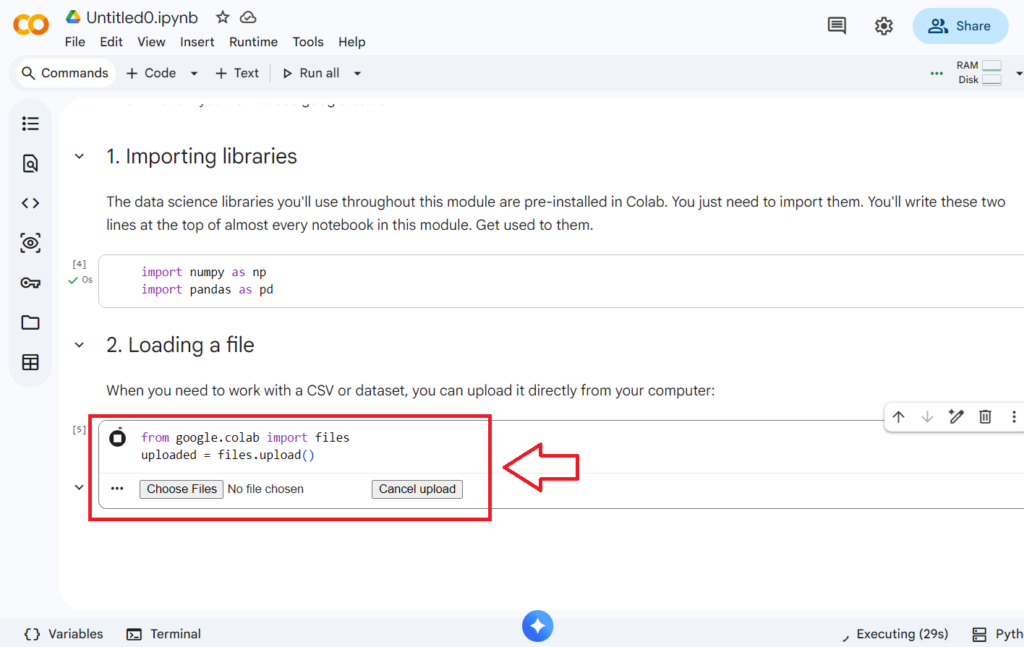
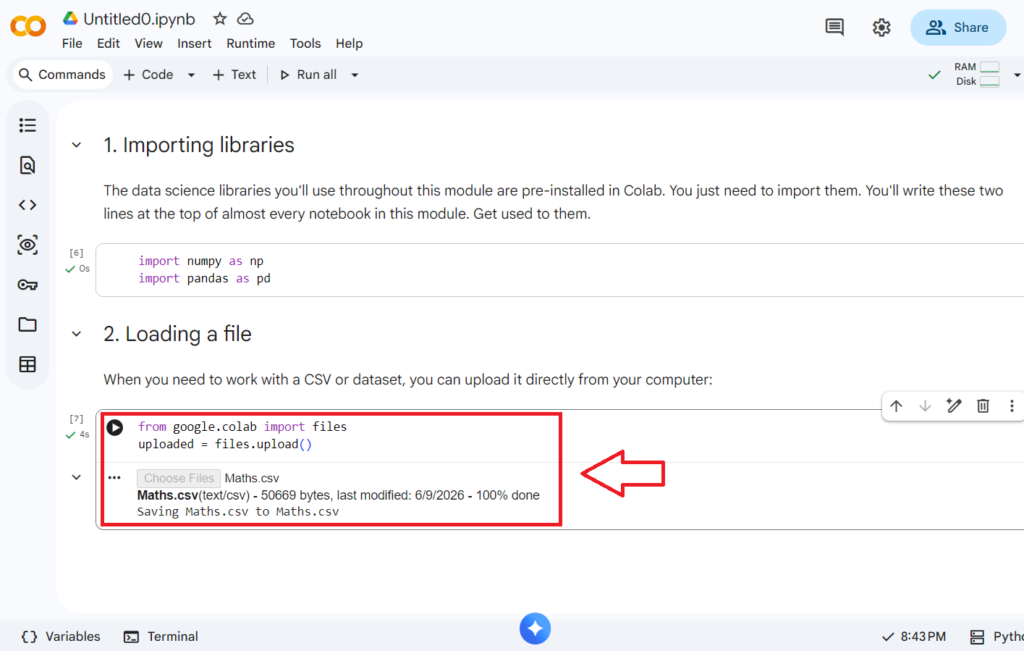
When you need to work with a CSV or dataset, you can upload it directly from your computer:
python
from google.colab import files
uploaded = files.upload()
This opens a file picker. Once uploaded, you can load it with Pandas like any other file.
Alternatively, if your file is in Google Drive, you can mount your Drive:
python
from google.colab import drive
drive.mount('/content/drive')
After authorizing, your Drive files are accessible at /content/drive/My Drive/.
Saving your work
Colab notebooks save automatically to your Google Drive under My Drive → Colab Notebooks. You can also go to File → Save a copy in Drive to keep a named version.
One important note: the runtime resets if you close the tab or leave it idle too long. Your notebook and code are saved, but any variables you had in memory are gone. Just re-run the cells when you come back.
